
Complete DaVinci Resolve
Tutorial For Beginners
Learn how to edit videos, create cinematic effects, add audio, color grade footage, and export professional content using DaVinci Resolve.
▶ Watch the Full Tutorial
Why DaVinci Resolve?
DaVinci Resolve combines professional editing, visual effects, motion graphics, color grading, and audio production inside a single application — and the free version is already powerful enough for most creators.
Quick Tip: The free version supports 4K editing, advanced transitions, effects, and professional color grading without any subscription.
Whether you’re creating robotics highlight reels, YouTube videos, cinematic edits, FTC tutorials, or promotional content, DaVinci Resolve gives you the tools without the cost.
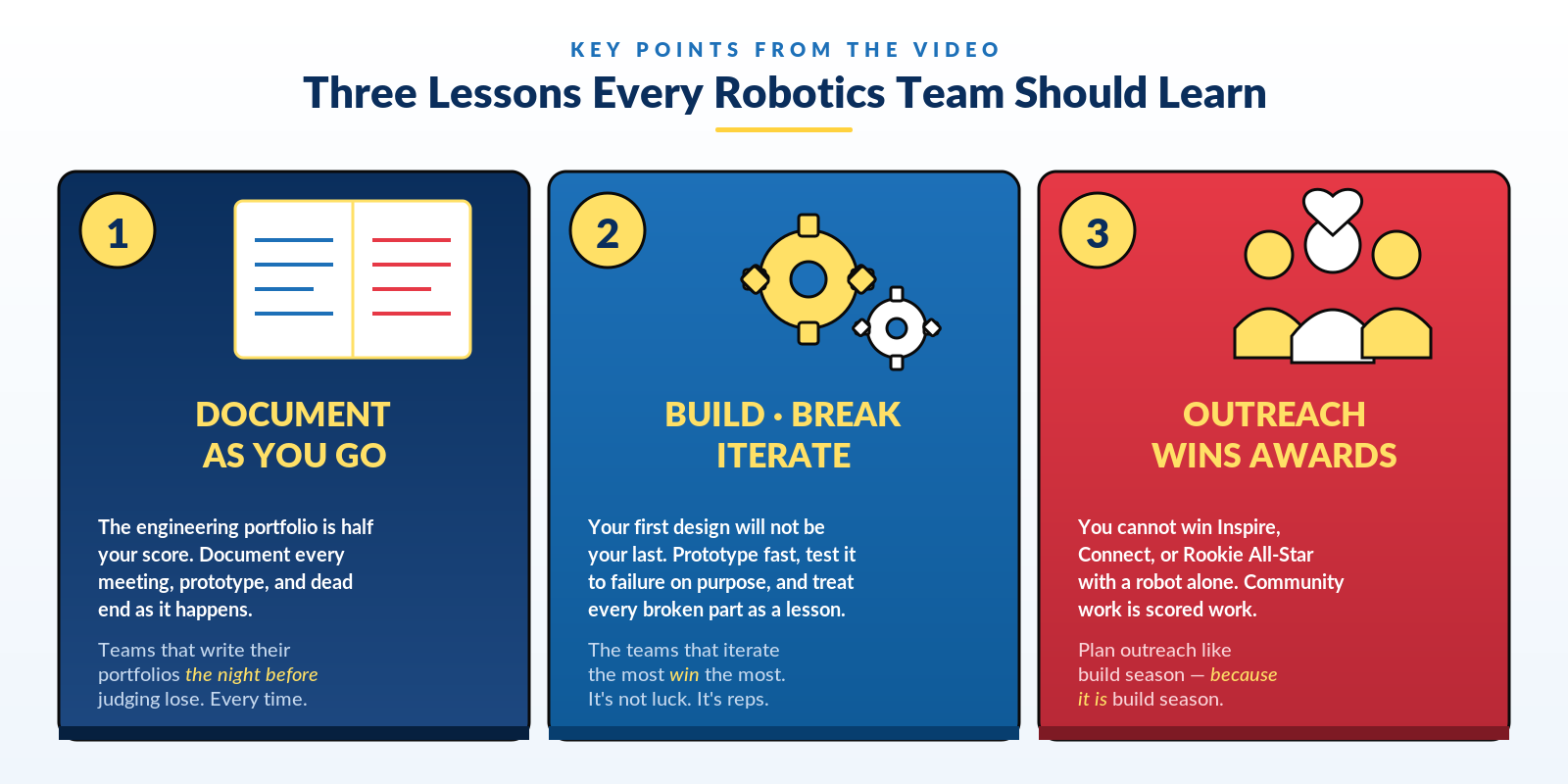
Key Points From the Video
Understanding the Workspace
DaVinci Resolve is organized into pages, each focused on a different part of the editing process:
Installing DaVinci Resolve
- Go to the Blackmagic Design download page.
- Choose the free version of DaVinci Resolve.
- Download the installer for Windows, Mac, or Linux.
- Complete the installation process.
- Launch the software and create your first project.
Basic Editing Techniques
The Edit page is where footage transforms into a finished story. Master these core skills first:
- Trim clips using the blade and trim tools
- Move clips around on the timeline
- Add transitions between scenes
- Use zoom and crop effects for motion
- Organize footage using bins and folders
- Sync music and sound effects with cuts
Color Grading Like a Professional
DaVinci Resolve is famous for its color tools. Follow this beginner workflow:
- Correct exposure and white balance
- Increase contrast for stronger visuals
- Adjust saturation carefully
- Use curves for cinematic lighting
- Apply LUTs sparingly
- Match colors between clips
Improving Your Audio
Clean sound instantly makes videos feel more professional. Keep these in mind:
- Normalize dialogue audio levels
- Use noise reduction carefully
- Add background music under voiceovers
- Use fades to avoid abrupt audio cuts
- Keep music volume lower than dialogue
Common Beginner Mistakes
- Using too many transitions
- Over-saturating colors
- Leaving audio levels inconsistent
- Not organizing footage before editing
- Rendering with incorrect export settings
Exporting Your Final Video
Head to the Deliver page when your project is complete. Use these settings for YouTube:
| Setting | Recommended Value |
|---|---|
| Format | MP4 |
| Codec | H.264 or H.265 |
| Resolution | 1920×1080 or 3840×2160 |
| Bitrate | 15,000 – 40,000 kbps |
| Audio | AAC 320 kbps |
| Frame Rate | Match timeline settings |
Final Thoughts
DaVinci Resolve is one of the best editing platforms available for beginners and professionals alike. Once you learn the basics, you can start building cinematic edits, motion graphics, YouTube content, robotics recaps, and professional documentaries.
Practice consistently and your editing skills will improve rapidly. Start with a short robotics recap and build from there.